
Guide
Getting Started with OGameX Helper Bot
Overview
This guide covers the first session with OGameX Helper Bot: installing the extension, opening it on a supported OGameX world, activating access, and preparing a small first automation setup. Complete these steps before configuring individual modules so every guide begins from the same reliable account state.
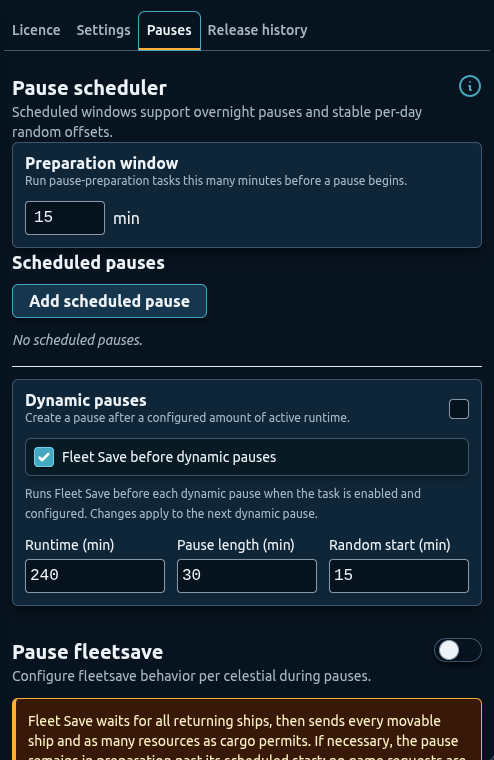
Development preview of the pause controls captured on 25 September 2026 from local build 1.2.2. The public Chrome Web Store release was 1.2.2 when checked that day; its controls may differ. This image illustrates setup after installation, not the license activation step.
Before You Start
Use a supported desktop browser and sign in to the OGameX account manually. Open the universe where you want to use the extension and wait until the normal game interface has loaded. OGameX Helper Bot is intended for signed-in universe pages; it does not replace the game’s login process.
Decide which account and universe the licence will be associated with. A licence is bound to the account where it is activated. If a key is already associated elsewhere, the extension may ask for confirmation before moving it to the current account. Read the confirmation carefully rather than switching it simply to dismiss the message.
Install the extension using the Chrome Web Store link on the OGameX product page. The product page is also the source for current prices and trial availability, which can change independently of the guide content.
Activate Access
Open the extension panel and select the Licence subtab. The panel shows whether the current licence is active or inactive and, when relevant, how much time remains.
To activate a paid key:
- Copy the complete licence key from your Helper Bot account or purchase confirmation.
- Paste it into Enter your licence key without adding spaces before or after it.
- Select Activate and wait for the check to finish.
- Confirm that the panel reports an active licence for the current account.
The Licence subtab may also offer a trial and a purchase button. Use the product or checkout page for current eligibility and terms. Avoid documenting a fixed trial duration as a permanent promise because offers can change.
If activation asks to switch the licence, confirm only when you deliberately want the key moved to the OGameX account currently open. If the account is wrong, close the confirmation, open the correct universe, and repeat the check there.
Prepare the Extension Panel
The header starts and stops the bot. An active licence is required before the bot can start. The panel can be pinned into a wider fixed layout or left floating over the game page. Collapsing the navigation changes the available workspace but does not change which modules are enabled.
Feature toggles in the sidebar are independent. Turning on Auto Build does not automatically enable Auto Research, Bank, or expeditions. Keep every feature disabled until its own settings have been reviewed. Some smaller utilities have their own checkboxes in Settings instead of sidebar entries.
The Release History subtab summarizes changes in installed releases. Use it to learn about newly available settings, but use the maintained guide pages for complete setup instructions.
Configure Safety Before Automation
Open the Pauses subtab before starting repeated tasks. Choose scheduled offline windows that fit your own use and the game rules. Scheduled pauses stop the bot at chosen hours, while dynamic pauses add downtime after a chosen amount of active runtime. Pauses stop configured automation during those periods but cannot guarantee account safety.
If your account needs ships or resources moved before a pause, configure Pause Fleet Save. Defender does not continue live attack detection during the fully paused period, so do not assume it replaces pre-pause protection.
Next, open Settings and choose a modest maximum random delay. Complete the first universe scan and Main Fleet setup before using Auction protection or inactive farming. Main Fleet is also shared by Bank and some fleet-save choices.
Choose a First Module
A good first configuration is small and easy to verify. For example, Auto Build can be enabled for one planet with one low target, or Auto Research can be given one target from a selected research planet. Avoid starting with Defender live evacuation, daily Bank collection, expeditions from every celestial, and inactive farming at the same time.
Use this first-run checklist:
- Only one main feature is enabled.
- The correct planet or moon is selected.
- Every target level, origin, destination, and resource limit has been reviewed.
- At least one fleet slot remains available for account needs.
- The next scheduled pause leaves enough time for the action to finish.
- You can watch the first complete action and its resulting status.
After the first successful cycle, stop the bot and check that the game state matches the panel. Then adjust one setting at a time.
Recommended Setup
- Activate access on the intended OGameX account.
- Configure scheduled and dynamic downtime.
- Select the maximum random delay.
- Complete universe discovery and select Main Fleet.
- Configure Pause Fleet Save if required.
- Enable one feature with conservative settings.
- Watch its first action and review the next-run timer.
- Export a configuration backup once the setup is stable.
Troubleshooting
- The bot cannot start: confirm the licence shows active and the supported OGameX universe page is fully loaded.
- The licence activates on the wrong account: cancel any switch request, open the intended account and universe, then check the key again.
- A module shows no celestials: run the bot once and allow discovery to finish before returning to its settings.
- Settings look correct but nothing runs: confirm both the sidebar feature toggle and the main bot status are active, and check whether a pause is in progress.
- You want to move settings to another browser: use the configuration export described in Configuration Tools.
FAQ
Do I need to log in through the extension?
No. Sign in to OGameX normally, open the correct universe, and then use the extension panel on that loaded game page.
Can one licence be used on any account at the same time?
A licence is associated with its activated account. Follow the displayed confirmation and dashboard rules when intentionally moving or resetting a key.
What should I automate first?
Choose one simple, visible routine with a small target, such as one building upgrade. Confirm it completes correctly before adding fleet or resource workflows.
Where should I check current prices and trial terms?
Use the OGameX product page and checkout. Guides explain configuration and do not replace current commerce information.
Is using the extension risk-free?
No. Automation carries risk. Use meaningful pauses and review the game rules before proceeding.