
Guide
OGameX Defender
Defender watches incoming hostile movements and creates protection plans for configured planets and moons. It recognizes direct attacks, ACS attacks, and moon-destruction missions. Begin in observation mode, inspect several detected threats, and configure every destination before considering live evacuation.
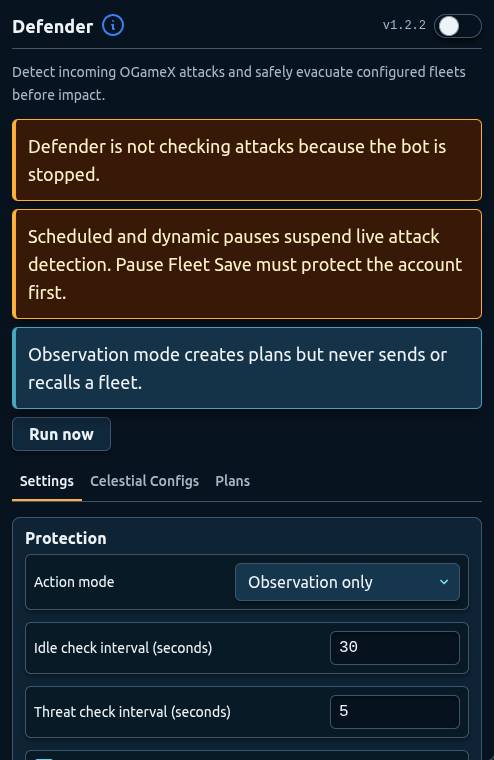
Development preview captured on 25 September 2026 from local build 1.2.2. The public Chrome Web Store release was 1.2.2 when checked that day; its controls may differ.
Overview
Defender has three subtabs: Settings, Celestial Configs, and Plans. Settings controls how often threats are checked and whether actions are observational or live. Celestial Configs chooses what is protected and where fleets can move. Plans shows detected impacts, scheduled actions, confirmations, results, and errors.
The feature requires both its sidebar toggle and the main bot to be running. A warning appears when the bot is stopped because attacks are not being checked. Scheduled and dynamic pauses also suspend live attack detection. Configure Pause Fleet Save before relying on an offline window.
Defender is a response tool, not a promise that every attack can be handled. Browser availability, connection state, fleet slots, ships, fuel, timing, and destination validity all affect whether a plan can execute.
Observation and Live Modes
Observation only is the recommended starting mode. It detects threats and creates plans but never sends or recalls a fleet. Use it to verify that target celestials, mission types, impact times, and preferred destinations are interpreted as expected.
Live evacuation allows Defender to move every available ship and as many resources as cargo permits from a protected celestial. Enable it only after every active celestial has a valid preferred or fallback destination and observation results have been reviewed.
Switching to live mode increases the consequences of a wrong setting. Test on a supervised account session and keep the Plans subtab open for the first real detection.
Check Timing
Idle check interval controls how often Defender checks when no current threat requires close attention. Threat check interval controls the faster schedule used around active threats. Randomized interval adds variation to those checks.
Use values that balance timely observation with a reasonable routine. Extremely long idle intervals can delay initial detection. Extremely short intervals do not guarantee a better outcome and can create unnecessary activity.
Evacuate seconds before attack defines the lead time for a scheduled evacuation. Choose enough time for the game action to be submitted before impact without moving the fleet much earlier than intended. Network and browser delays remain possible, so avoid relying on the smallest possible margin.
Use Run now to clear the current wait and request another check. This is useful after changing settings, but it does not create a threat or force an evacuation when plan requirements are not met.
Recall Controls
Recall enabled allows Defender to consider recalling the exact evacuation movement after the impact window. Recall seconds after impact adds a delay after the relevant impact.
Recall is guarded. The interface explains that it requires two clean scans plus known movement identity and server timing. If those conditions are not available, the plan should remain waiting or unresolved instead of recalling a different fleet.
Leave recall disabled during initial observation and live-evacuation testing. Confirm the outgoing fleet and impact sequence manually before adding an automatic return decision.
Diagnostics
The Settings subtab shows last check, last successful check, current threat count, and last result. Results include idle, clear, threats detected, and failed.
Use these values together:
- A recent last check with an older last successful check can indicate repeated failures.
- Clear means the latest successful observation did not find current hostile movements.
- Threats detected should correspond to entries in Plans.
- Failed requires attention before live mode is trusted.
The next-check countdown shows when Defender plans to look again. Dismissing it with Run now requests an earlier check without changing celestial configuration.
Interaction with Pauses and Fleet Features
Defender has priority while normal automation is running so other fleet routines do not consume ships or slots from a threatened celestial first. During pause preparation, it can respond before the ordinary fleetsave plan. Once fully paused, live observation stops.
Use a pause schedule for periods when you do not want Defender to act. Do not remove pauses simply to keep Defender online continuously. Instead, build a supervised Defender setup for active periods and a tested Pause Fleet Save plan for offline periods. Neither can guarantee account safety.
Recommended Setup
- Complete celestial discovery and configure the pause scheduler.
- Enable Defender in observation mode.
- Set reasonable idle and threat check intervals.
- Configure one protected celestial and valid destinations.
- Review Plans during several observations.
- Use Run now after a controlled settings change.
- Change to live mode only when every protected celestial is verified.
- Test recall separately and leave it disabled until outgoing actions are reliable.
Troubleshooting
- Defender is not checking: confirm the main bot and Defender toggle are active and no full pause is in progress.
- Threats appear but no fleet moves: observation mode does not act; in live mode, check the celestial toggle, destination, ships, resources, fuel, and fleet slots.
- Recall remains pending: the required clean scans or exact movement timing may not yet be known.
- Checks repeatedly fail: stop live mode, refresh the game page, and verify diagnostics before trying again.
- A pause begins during a threat: review both the Defender plan and Pause Fleet Save rather than assuming one will replace the other.
FAQ
What does observation mode do?
It detects supported incoming hostile movements and creates plans without sending or recalling fleets.
Which incoming missions are recognized?
The current Defender plan covers attacks, ACS attacks, and moon-destruction missions.
Does live mode move resources as well as ships?
It can send available ships and as many resources as their cargo permits from the protected celestial.
Why did Defender not recall immediately after impact?
Recall waits for its configured delay and guarded confirmation conditions, including clean scans and known movement timing.
Does Defender continue while the bot is paused?
No. Fully paused periods suspend live observation, so prepare fleets before downtime.