
Guide
Gladiatus Forge bot settings
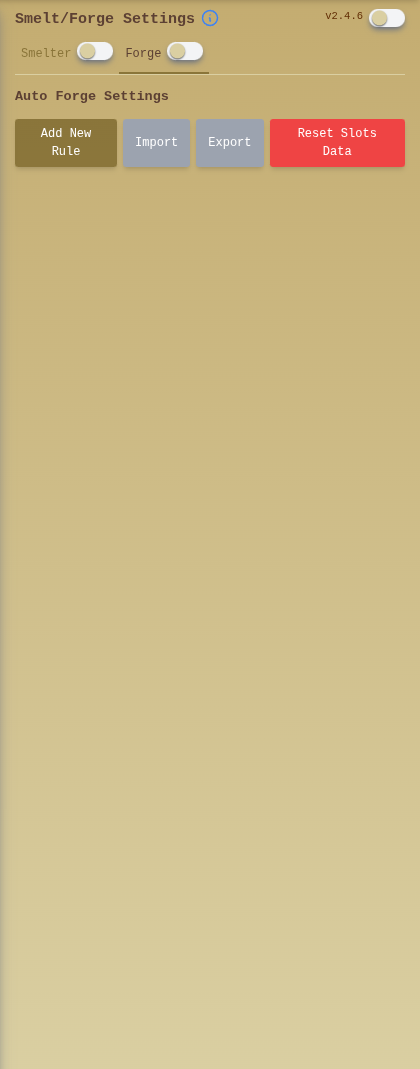
Screenshot: released extension version 2.4.6, captured on 25 September 2026. No forging rule is configured in this example, and Forge is off.
Overview
The Forge tab inside Smelt/Forge Settings is the Gladiatus forge bot module for automated item crafting. Its first screen offers Add New Rule, Import, Export, and Reset Slots Data. You define the item, resource, tool, and stopping conditions inside a rule before enabling the module.
Use this guide when you want to turn stored materials into planned forged items without manually repeating the same crafting setup.
Features
🔄 Auto Forge Settings
- Add New Rule – Enables users to create custom forging conditions.
- Import & Export – Saves or loads forging rule configurations.
- Reset Slots Data – Clears stored slot configurations.
🛠️ Custom Forging Rules
Users can create specific forging rules, defining parameters such as:
- Set Title – Assign a custom name to the rule.
- Slots to Use – Choose between 1 to 6 item slots.
- Item Type – Selects the item category (Leather Gloves, etc.).
- Prefix & Suffix – Customizes item names.
🏗️ Resource & Tool Management
- Max Resource Quality – Specifies the material quality used for forging.
- Tools Quality – Defines the tool durability for crafting.
- Hammer Type – Selects the Bronze, Silver, or Gold hammer for forging.
⚙️ Automation Settings
- Stop Forging After X Successfully Forged Items – Automatically stops after reaching a set crafting count.
- Stop Forging If Selected Resource Quality Is Not Available – Prevents crafting if required materials are missing.
- Stop Forging If Selected Tools Quality Is Not Available – Ensures only quality tools are used.
- On Success, Send Item To Inventory – Configures where completed items are stored.
📜 Example Forging Rule

This older rule example illustrates material selection, slot usage, and tool preferences. The live extension may arrange these fields differently from the example.
When To Use Forge Automation
- Use forge automation when you already have the resources and tools for a repeatable crafting target.
- Use stop conditions when you only need a fixed number of successful forged items.
- Use quality restrictions when material waste would be expensive.
- Use import and export when you maintain multiple crafting plans.
Recommended Setup
- Build one forging rule around a specific item type, prefix, and suffix.
- Set resource and tool quality before enabling the rule.
- Enable stop conditions so the bot does not continue after reaching your target.
- Pair forge automation with Gladiatus smelting automation so resource generation and crafting rules work together.
Review the completed rule and your available resources before switching Forge on. The captured empty state does not demonstrate a completed forge job; check the actual crafting result and resource use after a short first run.
Common Mistakes
- Forging without checking whether the selected resource quality is available.
- Leaving stop conditions disabled during long sessions.
- Using rare tools for low-priority crafts.
- Mixing too many crafting goals into one rule set.
Best Practices
- ✅ Use Import & Export to manage multiple forging rule sets.
- ✅ Enable Stop Forging If Resource Quality Is Not Available to avoid waste.
- ✅ Select higher-tier tools and hammers for optimal crafting results.
Related Guides
FAQ
Can the Gladiatus bot stop after a target number of forged items?
Yes. Use Stop Forging After X Successfully Forged Items to stop after the desired count.
Can forging rules require specific material quality?
Yes. Use Max Resource Quality and the stop-if-unavailable options to control which materials are used.
Should I use forge and smelting automation together?
They work well together when your smelting rules produce materials for planned forge rules, but each module should be tested separately before combining them.