
Guide
Auto Build Priorities
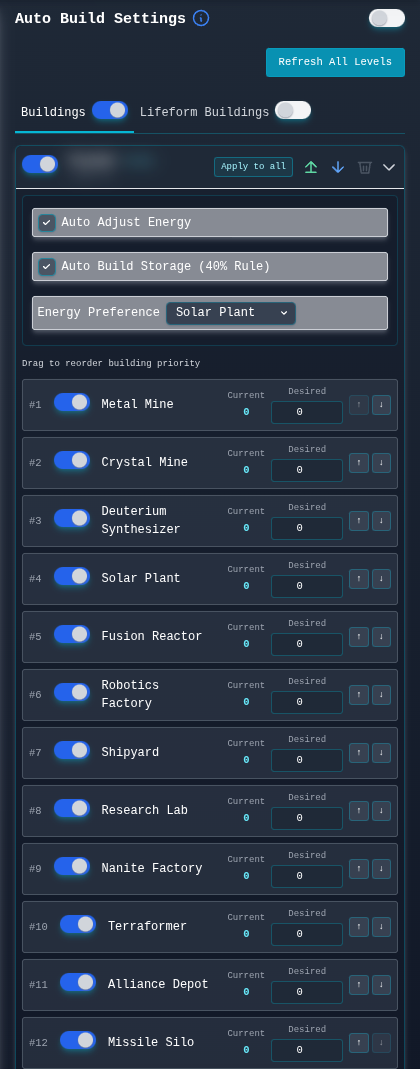
Screenshot: released extension version 1.2.4, captured on 25 September 2026 with the overall script inactive. The celestial name and coordinates are blurred. The displayed levels are zero because this captured panel had not received a current level snapshot; the saved toggles shown are not a recommended configuration.
Automatically upgrades mines, facilities, energy, storage, and moon buildings using per-celestial priority cards.
Overview
Auto Build Priorities is the OGame auto build module for mines, facilities, energy, storage, and moon buildings. It follows your priority order so planets continue developing without repeated manual clicks.
Use this guide when you want the OGame bot to keep routine upgrades moving while still respecting energy, storage, and per-celestial differences.
How It Works
Enable the Auto Build tab, then configure each planet or moon card. The bot follows the priority order shown in that card, uses the desired level fields as targets, and checks energy balance before choosing the next build. Optional storage rules keep storage levels aligned with mine growth.
Settings
- Per-Celestial Active Toggle: Turns building automation on or off for a specific planet or moon.
- Building Priority Order: Determines which buildings are upgraded first; drag items or use the move controls to reorder.
- Current and Desired Levels: Shows detected levels and lets you set the target level for each building.
- Auto Adjust Energy: Automatically builds energy when you go negative.
- Energy Preference: Chooses which energy building to use when adjusting.
- Auto Build Storage (40% Rule): Keeps storage buildings at least 40% of mine level.
- Apply To All: Copies the current card's activation state, priorities, toggles, energy, and storage rules to the other celestials.
- Import/Export: Saves or restores a celestial build configuration as JSON.
When To Use Auto Build Priorities
- Use it when you want mines and facilities to progress from a stable priority list.
- Use energy adjustment when planets frequently go negative after mine upgrades.
- Use storage rules when mine growth regularly outpaces storage levels.
- Use per-celestial cards for research hubs, fleet moons, or planets with different roles.
Recommended Setup
- Open Auto Build → Buildings and use Refresh All Levels before choosing targets. The refresh is scheduled; wait for the task to update the displayed levels before relying on them.
- Choose one planet, set a reachable desired level for a mine, and place that mine high in its priority list. Keep its per-celestial toggle and the Buildings toggle off until you have reviewed the plan.
- Enable Auto Adjust Energy if negative energy is common.
- Use one simple priority order first, then add per-celestial overrides after testing. Apply To All copies the current card's configuration, so check every destination before using it.
- Keep the 40% storage rule enabled if you often hit storage limits.
- After enabling the relevant toggles, watch the next build cycle. Confirm the chosen building, resulting level, energy balance, and resources in the game before broadening the plan.
If An Upgrade Does Not Start
- Check that the overall bot, Buildings, and that celestial's build toggle are enabled.
- Confirm the current level is below the desired level, the selected building is available on that planet or moon, and resources and prerequisites are sufficient.
- If the displayed level is stale, request a refresh and wait for the scheduled task. The button does not synchronously fetch all levels.
- Review the priority order and energy or storage rules; those can cause another build to take precedence. Game build queues and timing can delay the next action.
Common Mistakes
- Creating a priority list that jumps between too many goals.
- Forgetting energy, then wondering why mine output suffers.
- Applying the same priorities to every planet even when some have specialized roles.
- Turning on moon or facility builds before the resource economy can support them.
Best Practices
- Start with mines first for growth, then add facilities as needed.
- Enable auto energy if you are often energy negative.
- Use per-celestial overrides for special planets like research hubs or fleet moons.
Related Guides
FAQ
Can the OGame bot build energy automatically?
Yes. Enable Auto Adjust Energy and choose the energy preference you want the bot to use.
Can different planets use different build priorities?
Yes. Use per-celestial overrides when one planet or moon needs a different build plan.
Should I enable storage automation?
Enable the 40% storage rule if you want storage targets tied to the corresponding mine levels, and check that those targets fit your resource plan.